The quick answer
Haier TV screen sharing can be implemented by HaiCast, Android TV, Google TV, or another model-specific platform. The native receiver may support Windows and Android differently from Apple devices, so the model’s own interface comes first.
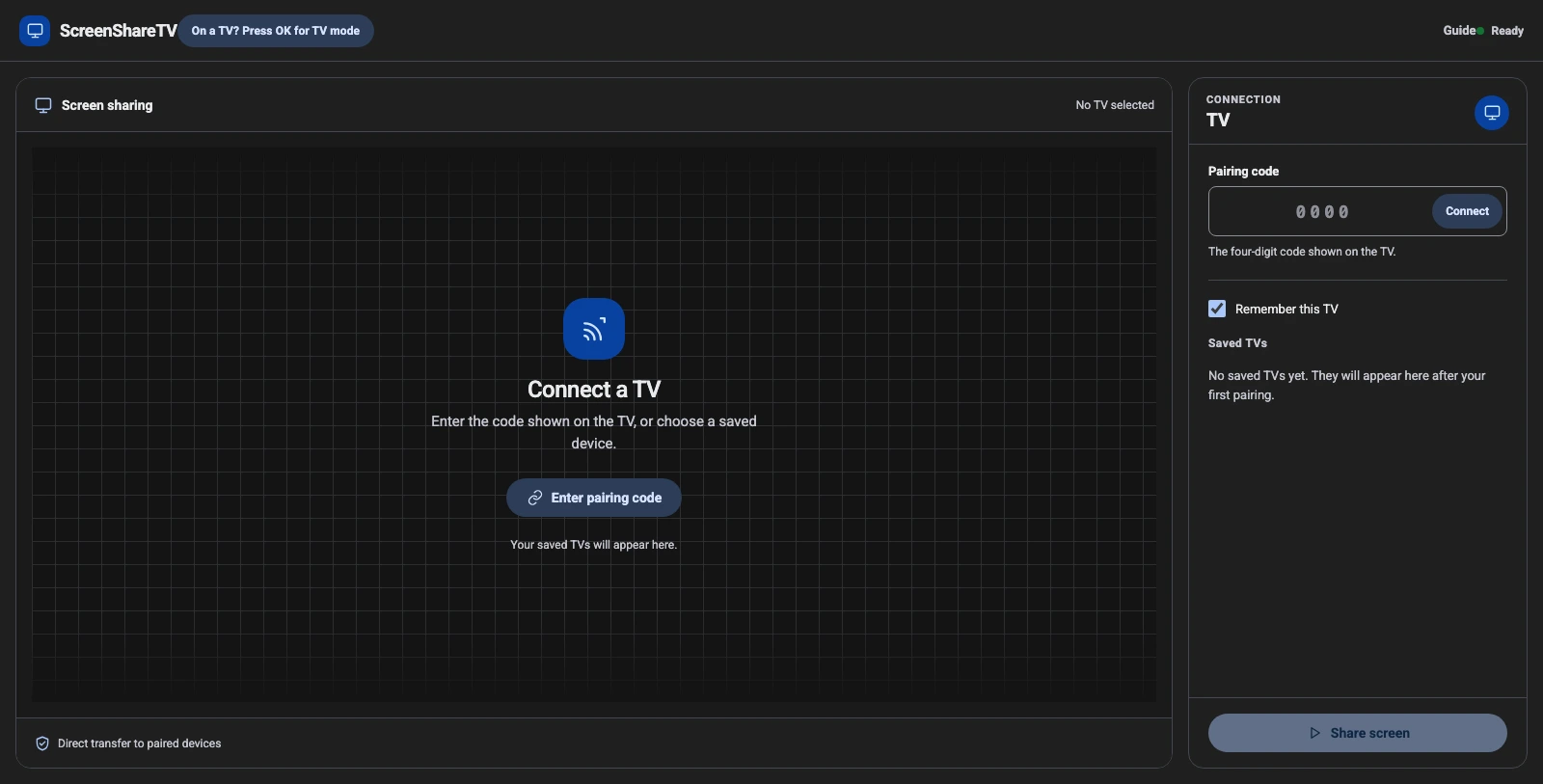
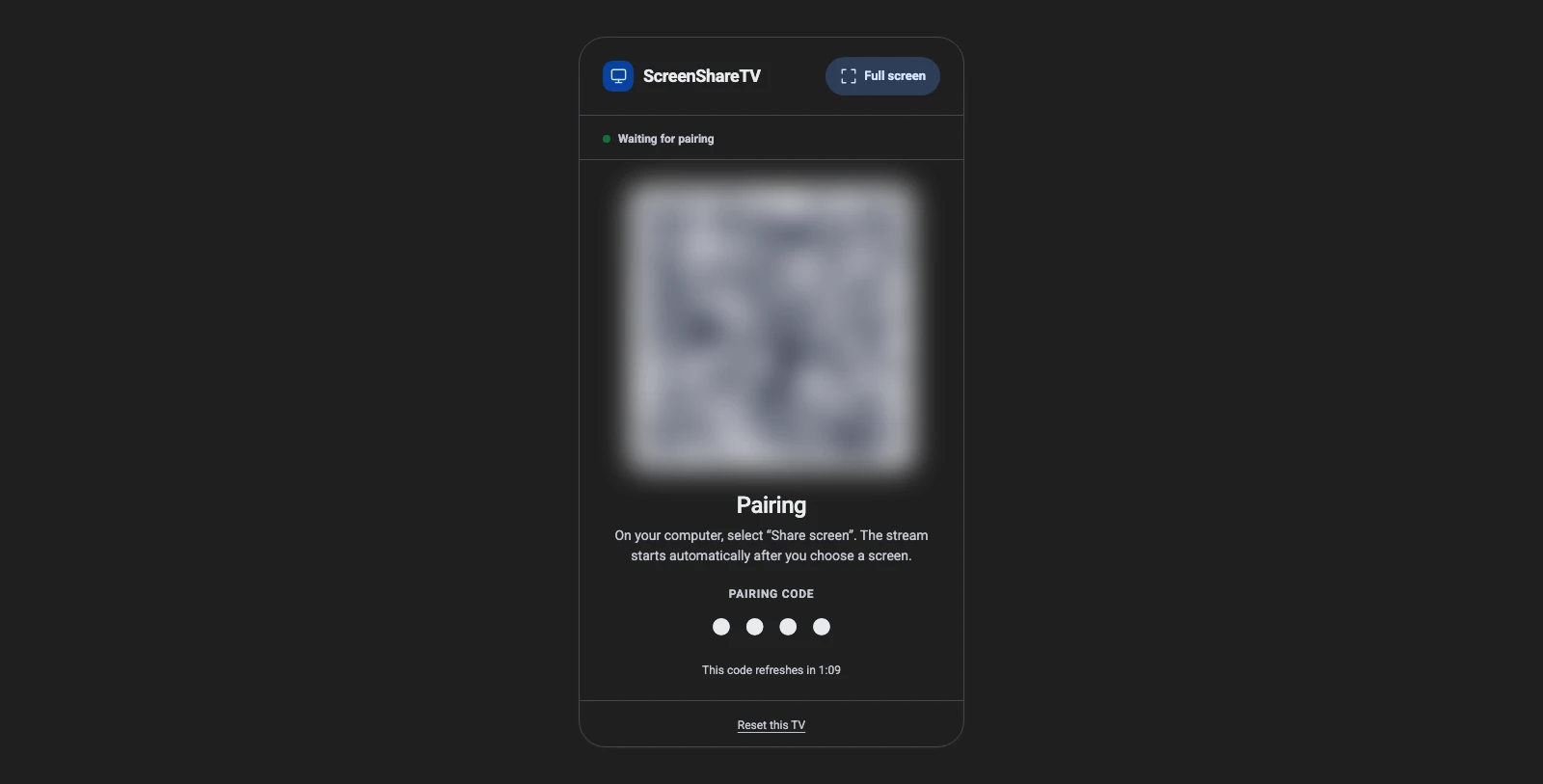
Use ScreenShareTV when the receiver can open TV mode in a compatible browser. The TV presents a QR code and short PIN, then the sender chooses a screen from the browser’s own picker. Use the Haier native path when its receiver features fit the devices in front of you. These are separate choices, and neither one proves that the other is available.
1. Identify this Haier TV before you start
On the Haier TV, open Settings and About and note the model, operating system, and installed receiver apps. Check for HaiCast, Google TV, Android TV, Chromecast, AirPlay, or an explicit Screen Mirroring application before selecting a sender device.
That short check prevents the most common setup mistake: following a guide for a different platform because the television brand matches. Receiver software, region, model year, and sender operating system all matter more than the logo on the bezel.
3. When the native Haier route is the better choice
HaiCast and Google-based receiver software have different sender support
Haier support materials describe HaiCast as a screen-mirroring route for a single active device and specifically identify Android and Windows 10 or later in that workflow. Other Haier products use Android TV or Google TV with Cast-oriented behavior. Apple sender support should be determined from the exact model rather than inferred from HaiCast or Chromecast.
What this Haier platform changes
Haier’s native sharing flow can be more restrictive than a generic “cast to TV” label suggests. HaiCast is its own application and support instructions distinguish its compatible sender categories and one-device session behavior. A Haier Google TV may instead rely on the Google Cast receiver, which changes how a browser or app discovers the display. A reader should identify whether HaiCast is installed before attempting a Windows or Android mirror, and should not expect the same route on every Haier model. The guide will explicitly separate receiver app behavior, local-network discovery, and ScreenShareTV’s independent WebRTC browser test.
Use the current Haier TV mirror-cast support and the manual for the exact model as the authority for menu names and feature availability. Manufacturer instructions can change with TV software updates, and a menu shown in a video or on a different model may not exist on yours. Read the official support reference: Haier: use mirror cast on TV.
4. Sender-device differences: PC, Mac, Android, and iPhone
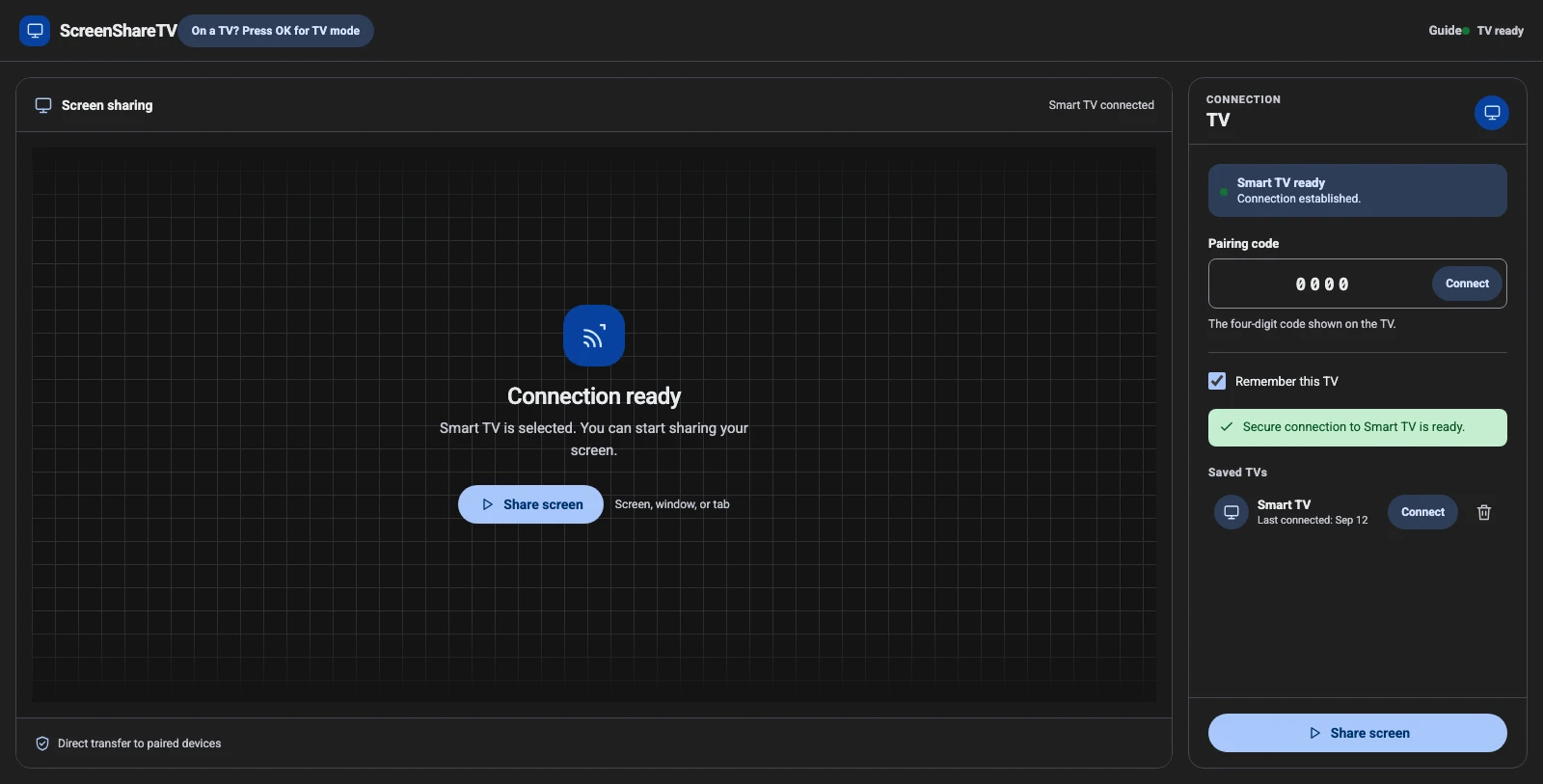
Windows and Android can use HaiCast or a documented platform-native route where available. Mac, iPhone, and iPad must check for explicitly advertised AirPlay or another compatible receiver. A supported ScreenShareTV browser follows the same QR/PIN pairing flow after TV mode succeeds.
For ScreenShareTV, the sender-side rule is simpler: start sharing only from a deliberate user action in a supported browser. If the protected browser picker does not expose an entire display, tab, window, or system audio choice, that limitation comes from the operating system or browser—not from the pairing page.
5. Full-screen viewing, sound, and quality
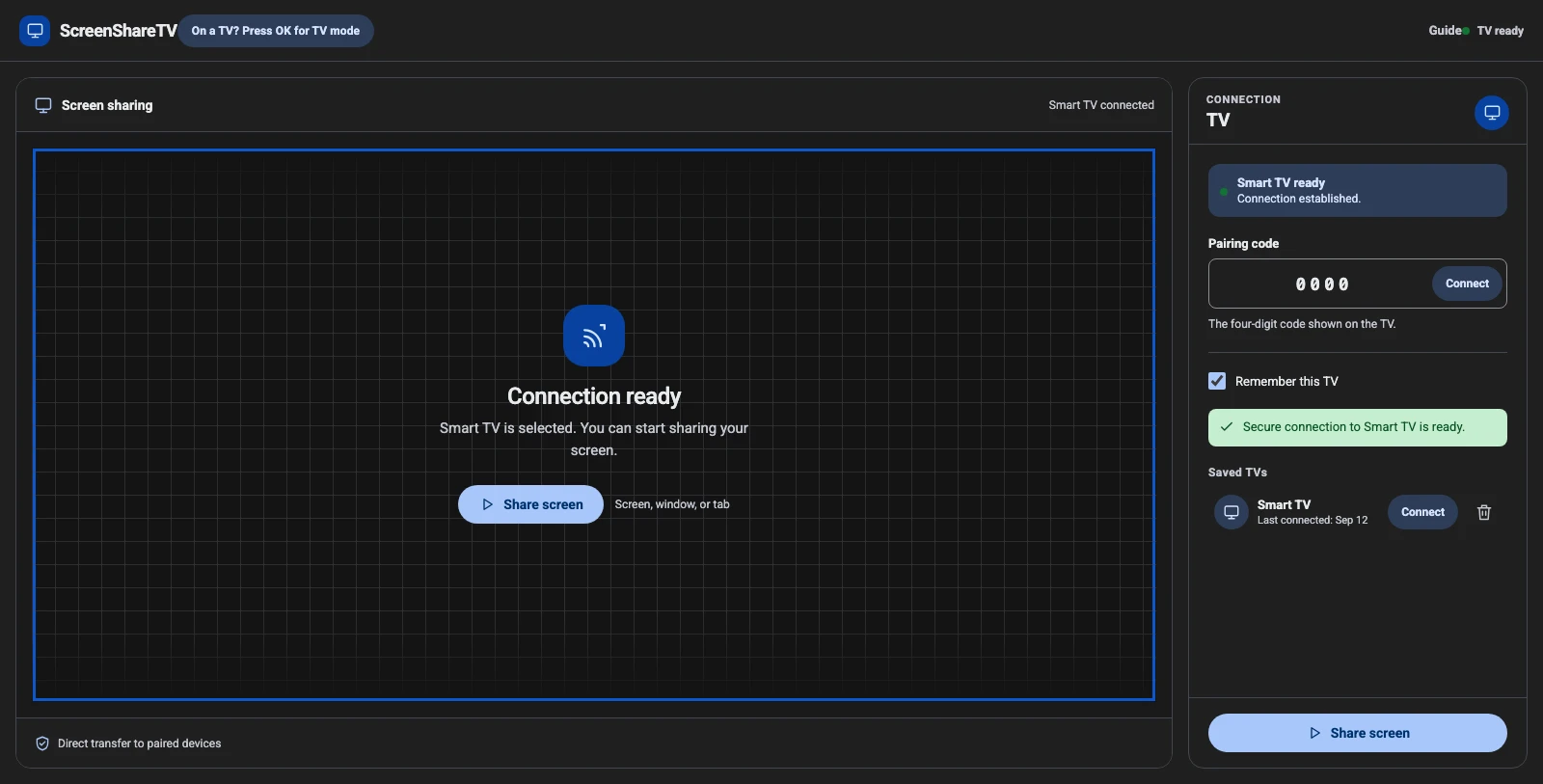
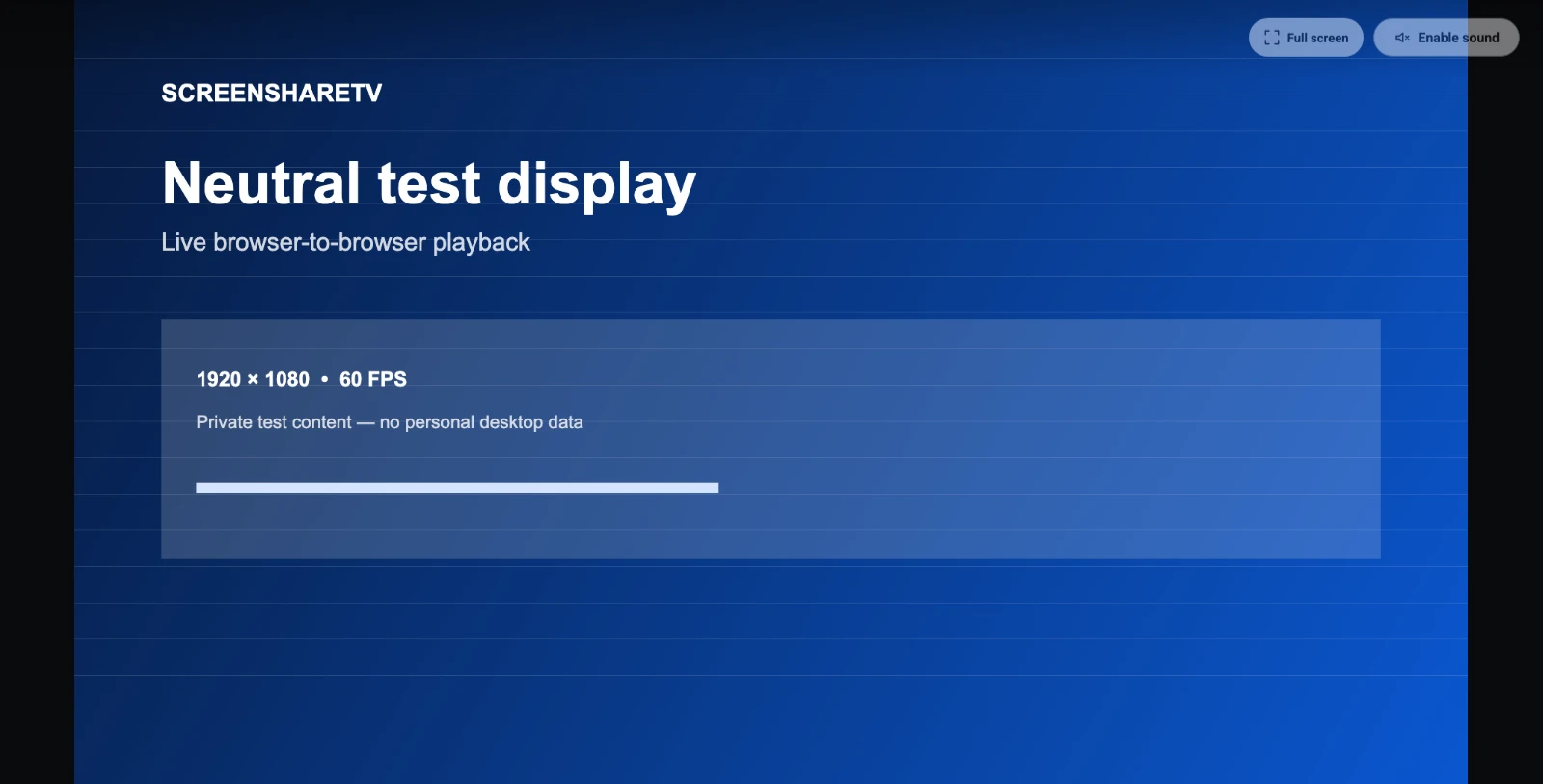
Use the TV’s full-screen control after playback starts. On supported receivers, ScreenShareTV begins safely muted to avoid autoplay blocks; the viewer can explicitly enable sound. Quality adapts to the sender, receiver, browser, and available route. A stable wired connection or strong Wi-Fi helps more than forcing an unsupported resolution.
For the cleanest full-HD or higher-quality session, keep the sending computer on power, avoid VPN or Wi-Fi roaming during the stream, close large background uploads, and select only the display or window you intend to show. If a direct route is unavailable, WebRTC can use the configured relay path; the experience can still work but may have different bandwidth and latency characteristics.
6. Haier troubleshooting
- A second device cannot connect: end the current HaiCast or native session before trying another sender.
- An iPhone cannot find the TV: confirm model-specific Apple receiver support; HaiCast is not a universal AirPlay service.
- The browser is unsupported: choose the Haier native route or HDMI.
When a native route fails, test whether the issue is discovery, permissions, or a model limitation before resetting the television. When ScreenShareTV fails, inspect the explicit receiver state, re-open TV mode, and begin a fresh pairing session. Do not share QR tickets or PINs in public messages.
7. Privacy and pairing boundaries
ScreenShareTV carries pairing and WebRTC signaling information so the two browsers can connect. It is not a cloud screen-recording service, and it does not silently capture the sender display. The screen is selected in the browser picker, the receiver session is visible on the TV, and the sender can stop the stream at any time.
Haier native sharing has its own privacy prompts, device lists, accounts, and receiver permissions. Treat those prompts as belonging to the native platform; they are not controlled by ScreenShareTV.
Haier screen-sharing FAQ
Does ScreenShareTV work with every Haier TV?
No. ScreenShareTV works only when the receiving display can open TV mode in a browser that supports the required secure WebRTC capabilities. Native Haier sharing support is a separate question and can vary by model. A recent television can still have a restricted browser, and a television with excellent native casting can still be unsuitable as a browser receiver. The explicit compatibility state in TV mode is the source of truth for this route.
Do the TV and sender need the same Wi-Fi network?
Native Haier sharing commonly expects the same local network because the sender must discover a nearby receiver. ScreenShareTV pairing begins through its signaling service and the best route is selected by WebRTC, but a stable local network usually gives the most predictable experience. Guest Wi-Fi, client isolation, captive portals, VPN changes, and Wi-Fi roaming can all change the result. For a long presentation, test the exact route before the audience arrives.
Can I share sound as well as the screen?
Where the sender browser and operating system expose system-audio sharing, choose it in the browser’s protected picker. The TV can begin muted because television browsers often restrict automatic sound; use the visible sound control after playback starts. Some applications, operating systems, and protected media services limit audio capture or playback by design. If sound is essential, check it with a short test before starting the real session.
Which route is best for a presentation or meeting?
Choose the route with the fewest unknowns for the equipment in the room. A documented native Haier receiver feature can be convenient when every device is on the same local network. A compatible ScreenShareTV receiver is useful when browser pairing is available and you want an app-free sender flow. HDMI is the conservative choice when the presentation is high stakes, the network is congested, or the receiver capability is unclear.
Does browser pairing change my Haier TV settings?
No. ScreenShareTV does not turn on, configure, or replace the Haier native mirroring system. It opens a separate web receiver session only after the browser capability check succeeds. Native settings, device permissions, saved AirPlay receivers, Cast permissions, and screen-mirroring preferences remain under the television platform and its own privacy controls.
ScreenShareTV is not affiliated with Haier or its television platform. Brand names are used only to identify compatible device families and their native sharing options.
READY WHEN YOUR RECEIVER IS
Pair a compatible screen and choose exactly what to share.
Open ScreenShareTV on your sending device, or start TV mode on the receiver to check compatibility first.