The quick answer: how do you screen share to a TV?
To screen share to a TV with ScreenShareTV, open TV mode on the television browser, then scan its QR code or enter its four-digit pairing code on your computer or phone. Once the TV is paired, choose Share screen, select a screen, window, or browser tab in the browser picker, and the picture appears on the TV.
The video path is direct browser-to-browser WebRTC whenever the network allows it. The signaling service only helps the two devices find and authorize one another. That means the product is designed for practical screen mirroring: presenting slides, showing a website, reviewing a design, sharing a browser tab, playing a private family video, or turning a larger TV into a second viewing surface.
Before you start screen mirroring
Screen sharing works best when the sender and receiver each use a current browser with WebRTC support. On the sending side, Chrome and Edge on desktop are the most straightforward choices because they expose the browser screen picker. On mobile, support is determined by the browser and operating system; a current Android browser may offer display capture, while iPhone and iPad browsers can limit browser-based screen capture. ScreenShareTV checks that capability before it asks you to begin.
On the television side, open the ScreenShareTV TV page in the Smart TV browser. A modern TV browser, streaming device browser, or connected computer can act as the receiver. The TV page will show a high-contrast QR code and a short pairing code. Keep that page open while you pair. The TV does not need a mouse, keyboard, or repeated remote-control interaction after its first setup.
- Use the same ScreenShareTV domain on both devices, not a mix of
localhost, a private IP address, and the production domain. - For the most responsive result, place both devices on a stable Wi-Fi or wired network.
- For a presentation, close notifications and choose only the window or tab you intend to show.
- For sound, choose a browser picker option that includes system audio when your platform offers it.
How to screen share to TV with ScreenShareTV
These five steps are the complete pairing and mirroring workflow. The first pairing takes a moment; later, a remembered TV can be opened from the saved-device list with one action.
1. Open TV mode on the receiver
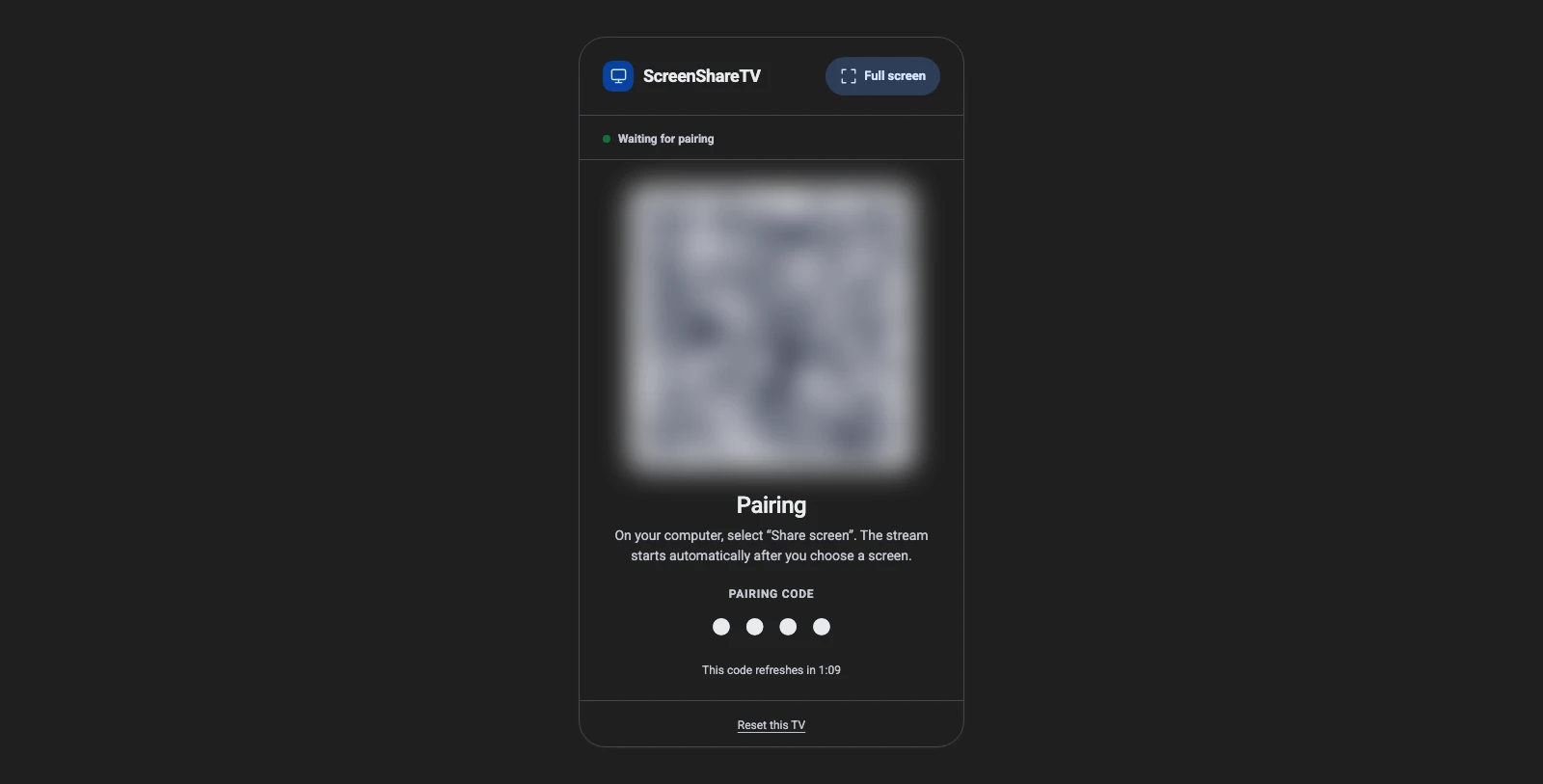
On the television, browse to ScreenShareTV TV mode. The TV creates a local receiver identity and displays a QR code plus a four-digit pairing code. QR pairing is the quickest option on a phone or laptop. The PIN is a useful fallback when you cannot scan a code.
2. Open ScreenShareTV on the computer or phone
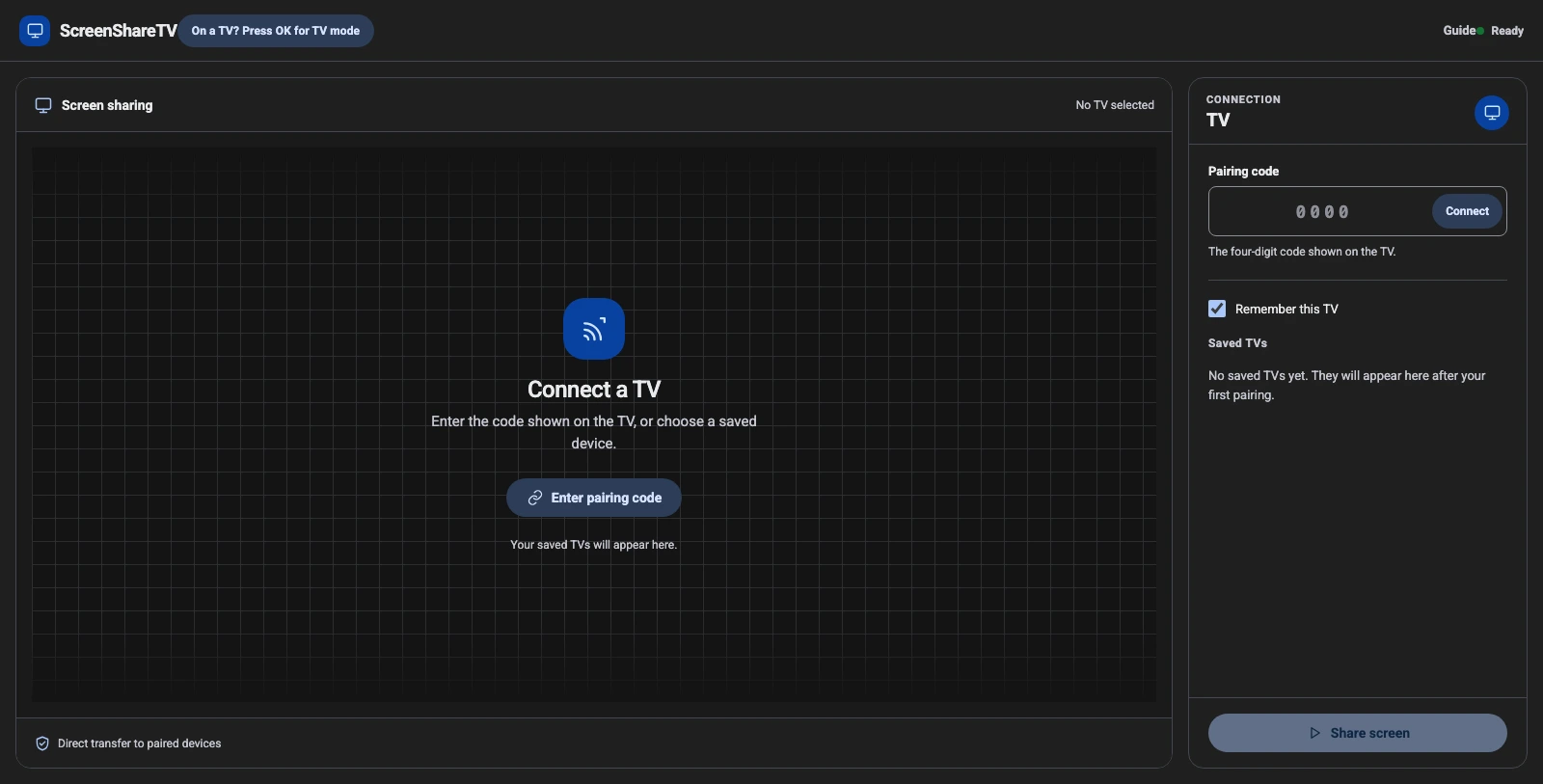
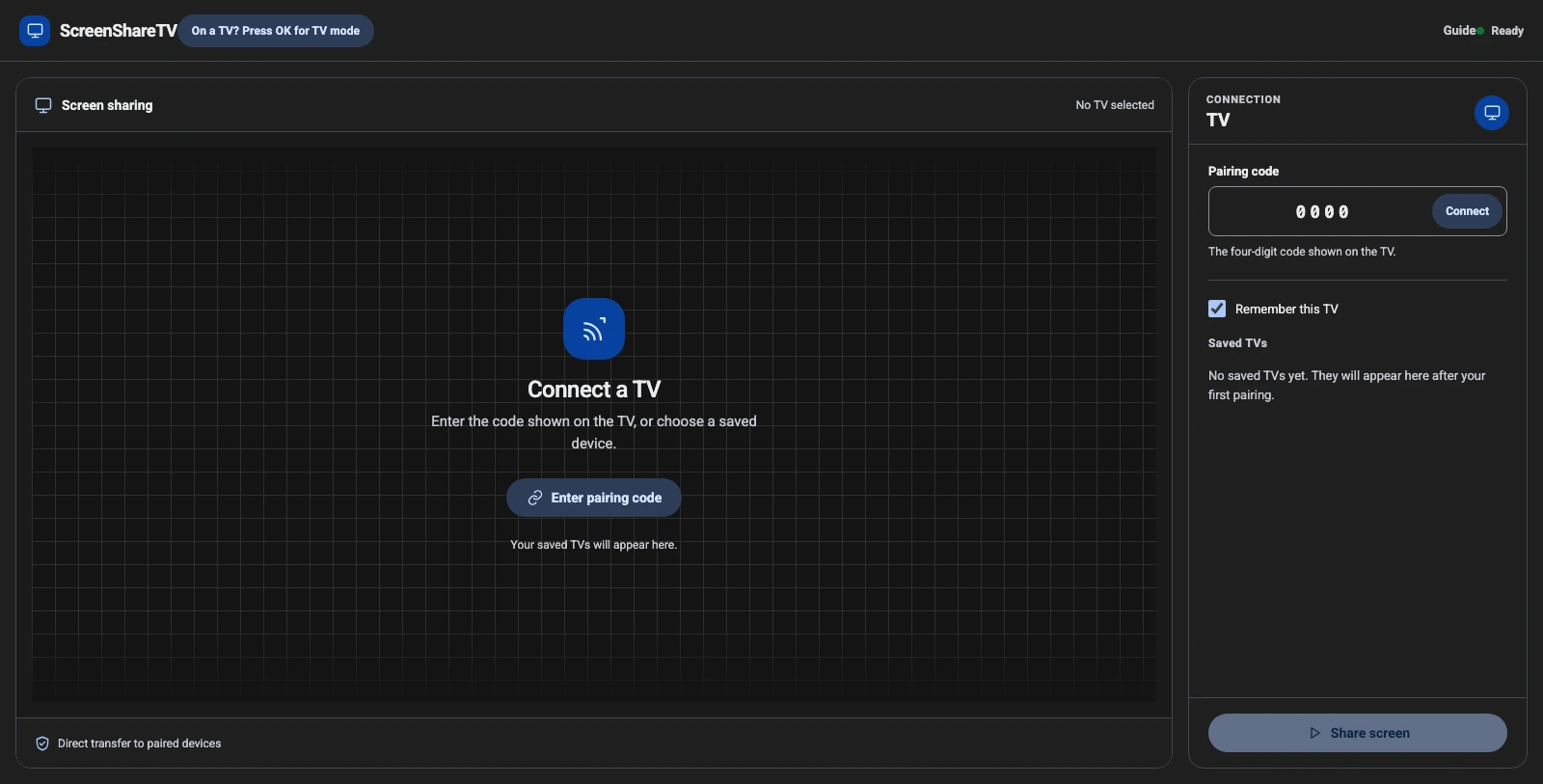
On the device that will send the picture, open ScreenShareTV. The main workspace is deliberately quiet: the center helps you choose or connect a TV, while the right panel contains the pairing input, remembered-device control, and saved TVs. If you are opening the sender page on a television by mistake, the focused TV-mode shortcut can take you to the receiver view with the remote’s OK button.
3. Scan the QR code or enter the pairing code
Scanning the QR code opens a short-lived, authorized pairing link. If you use the four-digit code instead, type it into Pairing code and choose Connect. The code refreshes on the TV, which keeps a stale code from being reused. You can select Remember this TV to keep a signed device permission in the sending browser for future one-click connections.
4. Confirm the TV and choose Share screen
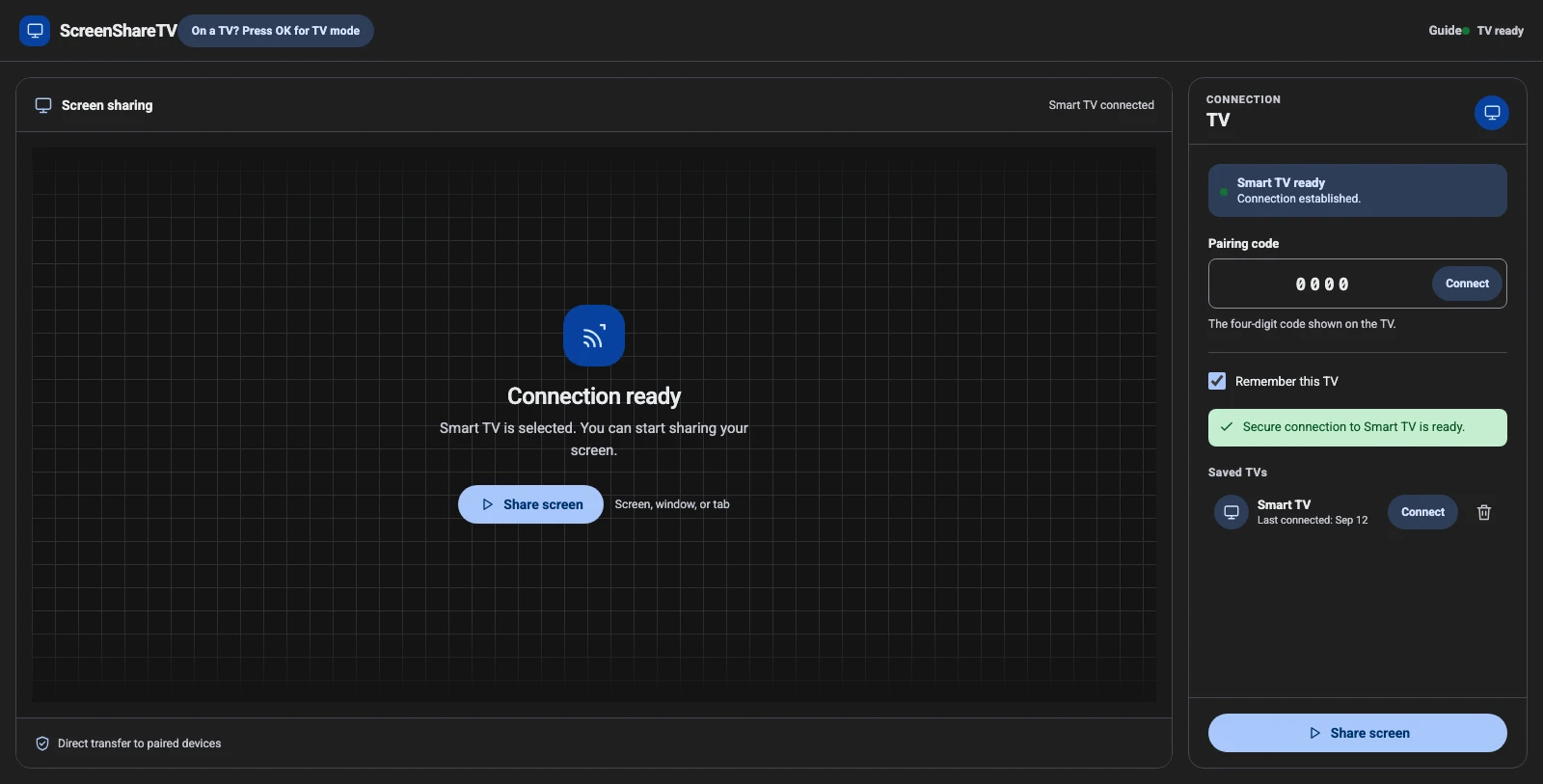
When pairing succeeds, ScreenShareTV confirms that the selected TV is ready. The large central action becomes active, and the same action remains available in the connection panel. Choose Share screen only when you are ready to open the browser’s protected screen-selection dialog. This is important: browsers require a deliberate user action before they allow a page to capture a screen.
5. Select exactly what the TV should see
The browser picker can offer an entire screen, a specific application window, or an individual tab. Select the smallest safe surface that serves the task. For slides, a presentation window is usually cleaner than an entire desktop. For a website demo, a single tab keeps desktop notifications and unrelated windows off the TV. If your browser offers audio sharing, enable it only when the TV should hear that content.
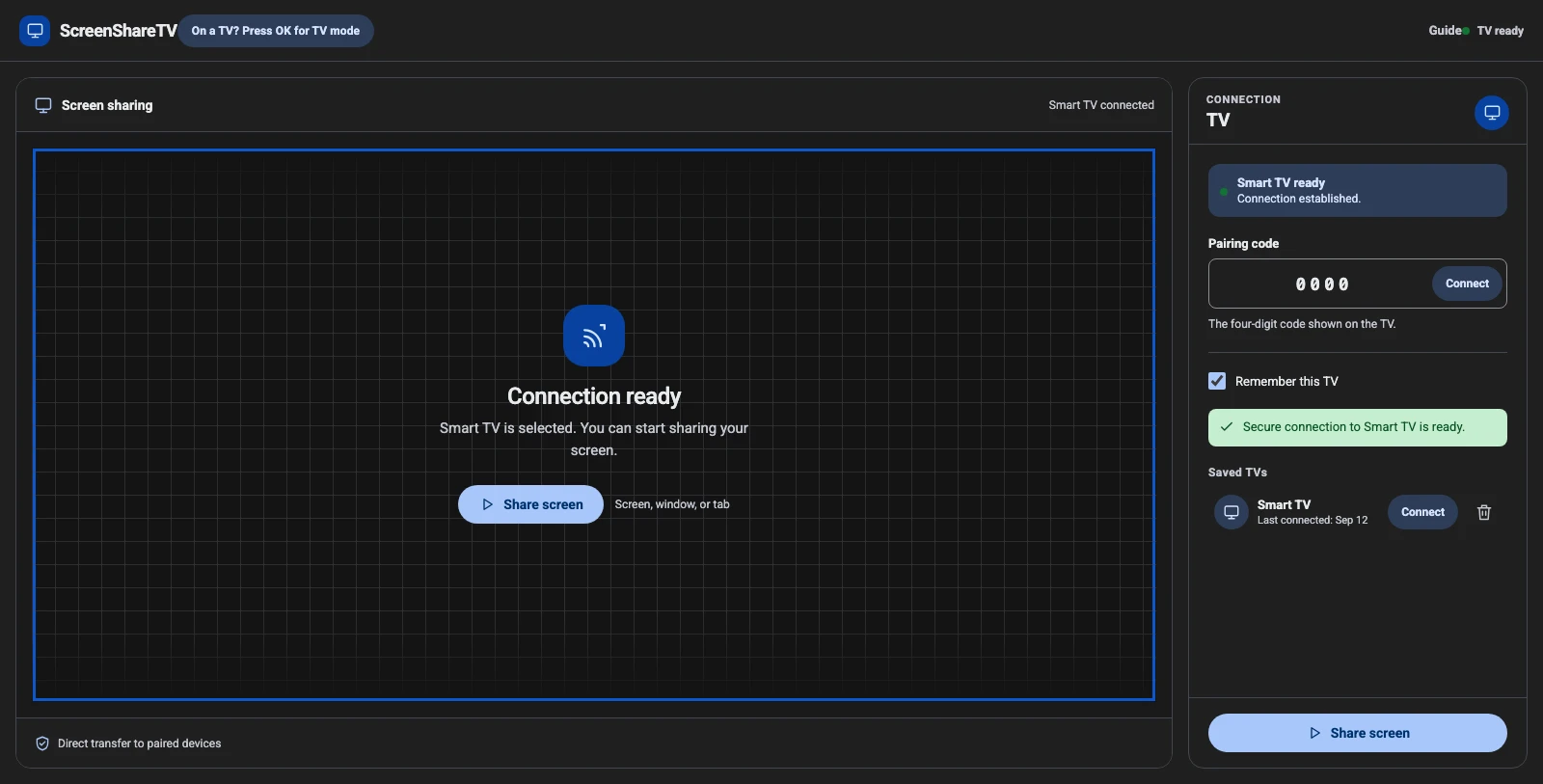
Choose what the TV sees before you mirror your screen
The browser picker is a useful privacy boundary, not an extra hurdle. ScreenShareTV asks the browser for display capture only after you select Share screen; the browser then shows the options that its operating system permits. A site cannot open that chooser on its own, cannot silently select your monitor, and cannot widen a tab share into your full desktop. Take a moment to read the picker before confirming it.
Share a tab for focused web content
A browser tab is usually the cleanest way to cast a website to a Smart TV. It keeps the television focused on a dashboard, a video player, a document, a photo gallery, or a web demo while leaving your desktop, chat windows, and notifications out of the stream. Some browsers include a share-audio toggle for tabs. Turn it on only when the audience should hear that tab; it is not needed for slides or visual-only work.
Share an application window for presentations and design reviews
Choose a window when the work lives in a desktop app, such as a slide deck, a spreadsheet, a design tool, or a video editor. This is often better than mirroring the entire monitor because it prevents accidental task switching from appearing on the TV. Before you start, make the intended window large enough to read at viewing distance and place presenter notes, private messages, and controls on a second display if available.
Share an entire screen only when the task needs it
An entire display is appropriate for a walkthrough that moves between apps, a training session, or a computer connected to the TV as a simple extension of the desktop. It also has the highest chance of exposing an unexpected alert. Enable Do Not Disturb, close password managers and personal chat, and keep the desktop tidy before you confirm. If a sensitive item appears, use Stop in the sender workspace; the TV returns to its waiting state rather than retaining a copy of the image.
For the clearest result, match the content to the TV. Use a 16:9 presentation or window for a 16:9 television, set slides and browser zoom large enough for the room, and avoid scaling a tiny laptop window across a large panel. A mirror screen to TV is most readable when the source itself is designed for the distance at which people will watch it.
Use saved TVs for one-click screen sharing
After a successful pairing, the sender browser can remember the TV. A saved device is tied to the browser’s local sender identity and the TV’s persistent receiver identity, rather than to the current Wi-Fi address. That is why moving between home Wi-Fi, office Wi-Fi, and a mobile hotspot does not by itself make a remembered TV disappear. The TV simply needs to be online and open in TV mode again.
A saved TV is not a public directory entry. It is an authorization kept by the browser that completed the original pairing. Remove a saved TV from the list when you no longer use that receiver, use a shared computer, or want to require the PIN again. Resetting the TV identity also invalidates its old remembered permissions.
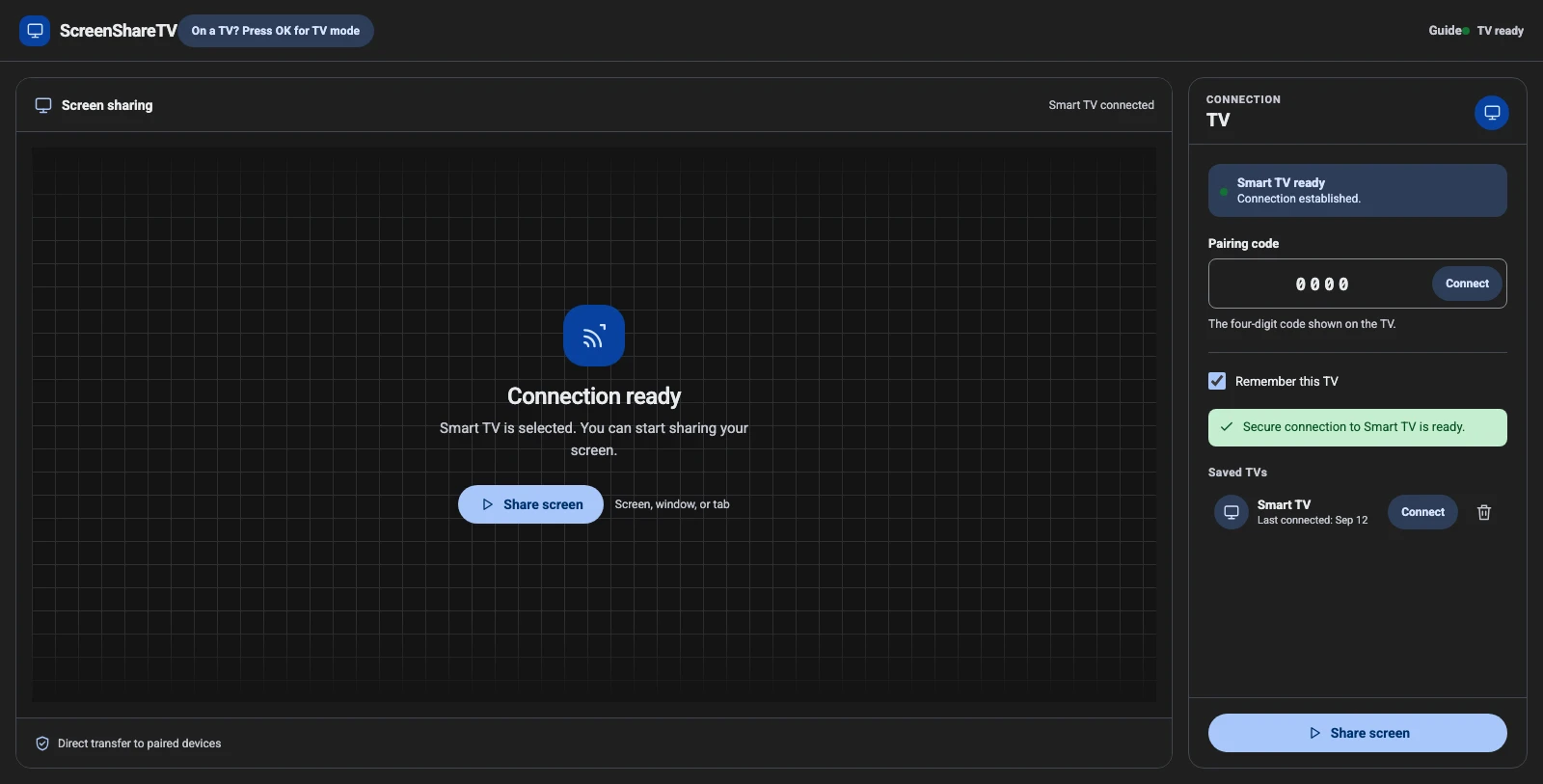
How to share a PC, Mac, Android phone, or iPhone screen to a TV
Windows PC and Mac
Desktop browsers are the best fit for a full screen share to TV because they normally offer screen, window, and tab choices. A PC or Mac can mirror an entire desktop for a meeting, share only a design tool for a review, or cast a browser tab to TV for a video, document, dashboard, or web application. For best quality, keep the computer awake, use a current browser, and avoid running unnecessary GPU-heavy apps during a high-resolution share.
Android phone or tablet
Android screen sharing depends on the browser build and the device’s display-capture permission. If ScreenShareTV reports that display capture is unavailable, it is a browser capability limit rather than a pairing problem. Try a current supported browser, then pair again. When Android exposes the screen picker, the same TV QR/PIN flow applies and you can mirror the phone screen to TV without installing a receiver app.
iPhone and iPad
iPhone and iPad browser support for full display capture can be more restricted. ScreenShareTV does not pretend a missing system permission is a working feature. If the browser cannot offer screen capture, use a compatible desktop or Android sender, or use the platform’s native screen-mirroring option where appropriate. The TV receiver and pairing workflow remain useful even when a particular mobile browser cannot act as the sender.
Same Wi-Fi, different networks, picture quality, and sound
When both devices are on the same Wi-Fi, WebRTC can usually establish a direct local route. That is the ideal path for a responsive screen mirror to TV. It does not mean the service discovers every TV on the network automatically: browsers intentionally restrict arbitrary local-network scanning. Instead, ScreenShareTV pairs a specific TV with a QR code, PIN, or remembered device permission and then negotiates the best available direct route.
Different networks can work too. In that case, the signaling service coordinates the connection and a TURN relay can be used if a direct peer-to-peer route is blocked by NAT or firewall rules. The product is built so that media is not recorded by the signaling service. A relay, when required, transports live media; it is not a cloud recording feature.
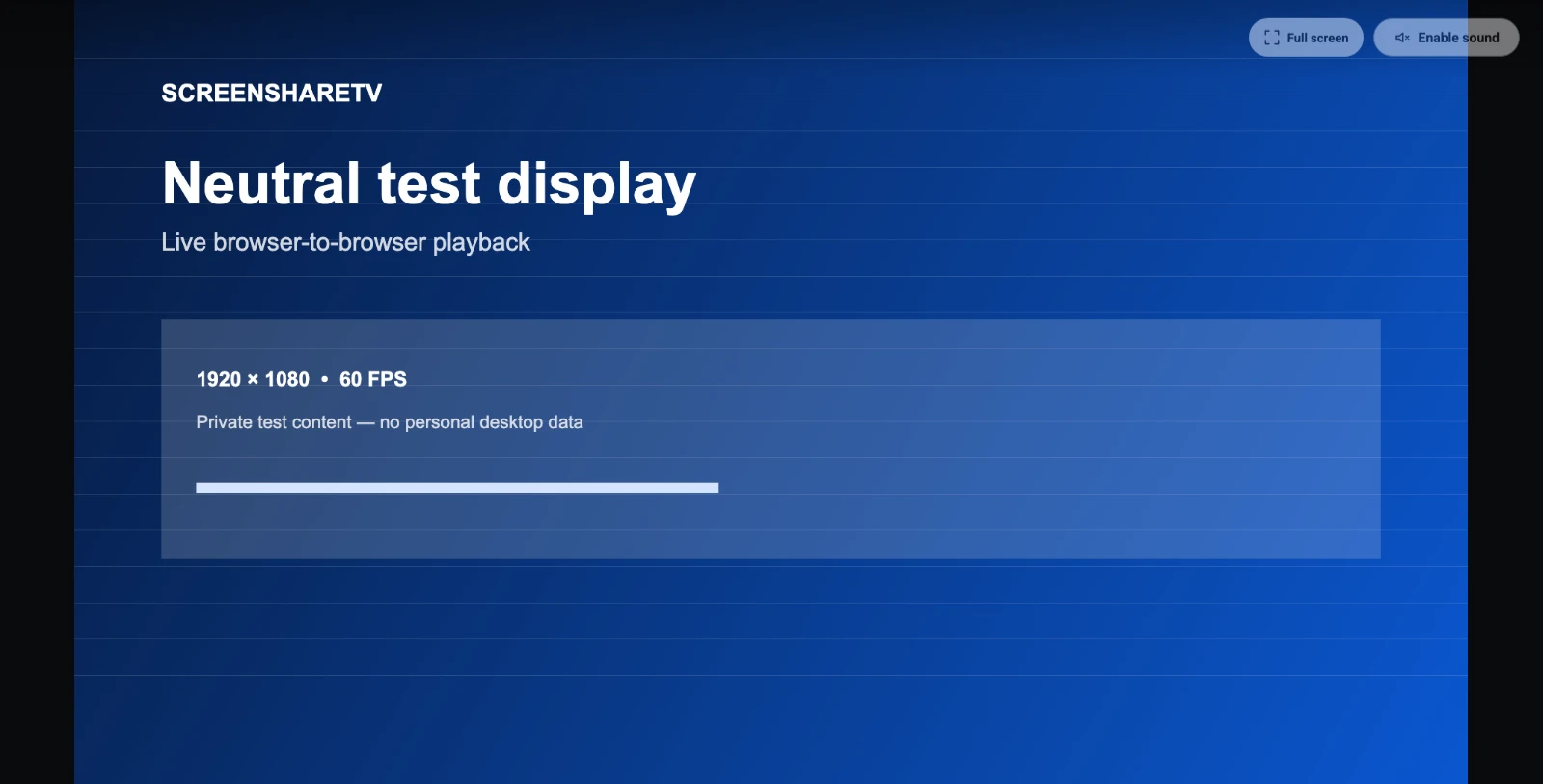
ScreenShareTV requests a high-quality screen capture profile based on the receiver’s display capability. Compatible devices can prioritize 4K, 1440p, or Full HD at up to 60 fps. It preserves resolution where practical, favoring detail for text, slides, and interfaces. Your source screen, receiver display, Wi-Fi throughput, device encoder, and browser are still the final limits. A 1080p laptop cannot create a true 4K image, and an overloaded network may need to trade frame rate or bitrate for a stable connection.
TV playback begins muted to satisfy Smart TV autoplay rules. Choose Enable sound on the TV when you want audio and the browser permits it. Once a stream is playing, the TV view is designed to be quiet: the video fills the screen, the controls fade away, and a remote or pointer action reveals them again. Use the full-screen action once; the TV remembers that preference and presents a restore action if the browser exits full screen unexpectedly.
Privacy and security when you screen share to a TV
Screen sharing deserves a deliberate pairing model because a television is often visible to more than one person. ScreenShareTV begins with a receiver-specific QR code or a short PIN shown on the TV itself. The QR pairing link is short-lived, and the PIN is a fallback that refreshes. A person who cannot see the receiver display should not be able to guess a durable TV address from the interface.
After a pairing is accepted, the sender receives authorization that applies to that receiver and session. Signaling messages such as offers, answers, and connection candidates are checked before they are relayed between the paired browser sockets. The design is intentionally one sender to one TV at a time: it avoids the ambiguity of a public room list and makes an active presentation easy to understand. If the TV is already receiving a real live stream, another sender must wait until the first share ends.
The screen media is carried as live WebRTC traffic rather than uploaded as a recording to the signaling server. A direct peer route is preferred on compatible networks. If the network requires a TURN relay, the relay helps transport the live packets but is not a gallery, file store, or cloud recording feature. As with any live screen share, the strongest privacy control remains the choice you make in the browser picker: share only the tab, window, or display that the room needs to see.
What “Remember this TV” means
Remembering a TV is a convenience feature for a browser you control. The sender saves an authorization associated with its local sender identity and that TV’s persistent receiver identity, so the next connection can begin without typing a new code. It is not an account login, a public bookmark, or a way for arbitrary devices to find the TV. The permission has a limited lifetime and can be removed from the saved-device list at any time.
On a shared laptop, borrowed tablet, hotel computer, classroom lab, or public kiosk, leave Remember this TV off. If you previously enabled it on a machine you no longer control, remove the saved device from that browser. Resetting the TV identity in TV mode is the stronger option: it creates a new local receiver identity and invalidates remembered permissions tied to the old one. These small habits make a browser-based cast PC to Smart TV workflow convenient at home without treating every browser as trusted forever.
Screen sharing to TV troubleshooting
The TV is online but pairing does not complete
Refresh TV mode to generate a current QR code and PIN, then make sure the sender uses that new code. Check that both devices are opening the same domain. In local development, localhost and a LAN IP address use separate browser storage, so a remembered device on one is not automatically remembered by the other.
The browser never opens the screen picker
Choose Share screen directly with a mouse, touch gesture, or keyboard action. Browsers reject display capture that is initiated automatically. If the action still fails, update the browser, confirm that it has permission to capture the screen, and test with a desktop browser.
The TV says a stream is active when nothing is playing
Stop sharing from the sending browser or reload the stale sender page. ScreenShareTV releases sessions when a sender leaves the page and does not keep a disconnected sender as an imaginary live stream. If an actual sender is still connected, the TV correctly keeps one active publisher at a time.
The image is soft or delayed
Use 5 GHz or wired Ethernet when possible, move closer to the access point, and pause large downloads. Share a single app window or tab instead of a cluttered desktop. Confirm that the source resolution and TV display are capable of the quality you expect. If the direct route is unavailable, a relay can keep the session working across networks, but a local direct connection is usually the most responsive path.
Screen sharing to TV FAQ
Do I need an app to screen share to a TV?
No. ScreenShareTV is browser-based. The TV opens TV mode in its browser and the sender uses a browser with WebRTC and screen-capture support.
Can I screen share to a TV without being on the same Wi-Fi?
Yes, provided both devices can reach the service and the network permits WebRTC. A direct route is preferred; TURN can provide a relay fallback when NAT or firewalls prevent it.
Does ScreenShareTV record my screen?
No. It is designed for live transfer, not cloud recording. Signaling coordinates pairing and WebRTC setup; it does not create a recording library.
Why is there no sound at first?
TV browsers often block unprompted audio playback. The stream starts muted, then you can choose Enable sound on the TV when the browser allows it.
Why can’t my iPhone share its entire screen?
That depends on the browser and iOS display-capture capabilities. ScreenShareTV reports unsupported capture instead of simulating a broken flow.
READY TO SHARE?
Screen share to your TV in a few focused steps.
Open the sender on your computer or phone, open TV mode on the receiver, and pair the two devices with a QR code or PIN.